Edgegap
Redwood provides a first-class integration with Edgegap by using the edgegap provider. This integration focuses on the Deployment API.
Preparing the Game Server
Edgegap requires you to connect a Container Registry where the Docker image for the game server is located. You can either use Edgegap's built-in Container Registry or host it elsewhere. You need a Container Registry for Redwood services as well.
You'll follow the steps for Building and Pushing Docker Images to publish the game server image to the Container Registry.
Configuration
To use Edgegap, you'll need to add config overrides for the Realm Instance Config game-servers.edgegap.* variables.
game-servers:
  edgegap:
    credentials:
      # Your Edgegap API token - get this from your Edgegap dashboard
      # This can be a secret in the secrets provider
      api-token: ""

    # The application name in your Edgegap account
    # This must match the name of your application in the Edgegap dashboard
    application: ""

    # The version of the application to deploy
    # This must be the match the version slug used in the Edgegap dashboard
    version: ""
Using Edgegap Game Servers in Development
Similar to deploying to Kubernetes, you need to be able to package dedicated servers before you can use Edgegap.
In development it's easier to use the local and agones providers with the Dev Initiator and Kubernetes respectively, but it's may be more cost effective for you to use the edgegap provider in cloud/production environments until player demand reaches a point where agones and self hosting your game server nodes becomes more cost effective, especially for match based games.
However, you can use the edgegap provider with the Dev Initiator for testing viability and integration.
Install ngrok
ngrok is a free service that gives you a public endpoint that forwards to a port on your local machine. We'll be using it so the game servers on Edgegap will be able to talk to the backend services in the Dev Initiator.
-
Signup for a free account at https://dashboard.ngrok.com/signup
-
Login and follow the Connect instructions on https://dashboard.ngrok.com/get-started/setup.
noteYou can choose which ever Installation method you want in the instructions as long as the
ngrokexecutable is on your PATH.noteFor now you don't need to follow the Secure your endpoint steps, but you can if you want for extra security. This guide will assume you didn't.
-
Open a terminal and run
ngrok http 3010. This will open a tunnel that the Realm Backend service will use. -
You should see something like the below, noting the Forwarding line:
ngrok                                                                                                   (Ctrl+C to quit)
Policy Management Examples http://ngrok.com/apigwexamples
Session Status                online
Account                       Mike Seese (Plan: Free)
Update                        update available (version 3.14.0, Ctrl-U to update)
Version                       3.3.2
Latency                       -
Web Interface                 http://127.0.0.1:4040
Forwarding                    https://***.ngrok-free.app -> http://localhost:3010

Connections                   ttl     opn     rt1     rt5     p50     p90
                              0       0       0.00    0.00    0.00    0.00
Configuration
In your Realm Instance Config for your custom config environment (e.g. realm/instances/default.yaml), you'll need to specify the ngrok host so the Edgegap servers can connect to your local Dev Initiator:
backend:
  connection:
    external:
      host: "***.ngrok-free.app" # Copy the public **Forwarding** address from the `ngrok` terminal without the `https://`
      port: "443" # Keep this at 443, not 3010
      tls: true
Test
Run the backend like you did in the getting started section.
You can now start a match like you did in the getting started section.
In some scenarios you can test with the Edgegap servers while running PIE, but you may have issues actually connecting the client to the server. You'll be in the loading screen about to connect to the server but then get kicked back to the main menu. Check the Output Log to see if you received a warning/error (search for checksum mismatch):
LogNetPackageMap: Warning: GetObjectFromNetGUID: Network checksum mismatch.
In these cases, you'll need to package a Windows Client instead of PIE:
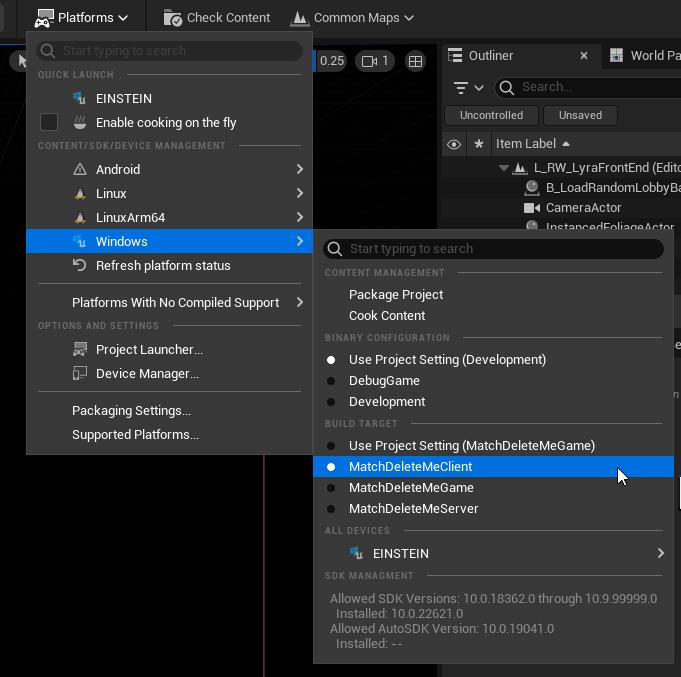
If you are unable to connect to your local Dev Initiator from the packaged Windows client, it's likely because you didn't press the Set as Default button when changing the Director Uri setting in the Project Settings (because the guide did not instruct you to).
When you package the game, it uses what's defined in the Config/DefaultGame.ini (or the default) instead of what is listed in the Project Settings window. When you tested PIE in the getting started section, Unreal was just using a temporary change of the variable.
You have two options:
-
Go back to the Project Settings > Redwood and press Set as Default to save the change to add the
:3001port -
Add a
redwood.jsonfile in the packaged build atWindowsClient/YourProjectName/redwood.jsonwith the below contents. Make sure to restart the game client after making this change. Theredwood.jsonfile comes in handy if you need to point a pre-packaged client to a different Redwood Backend instance (e.g. running Redwood at an internet-less conference but using the latest production client).{
"directorUri": "ws://director.localhost:3001"
}